How I made my first Godot game in a day
By Charlie L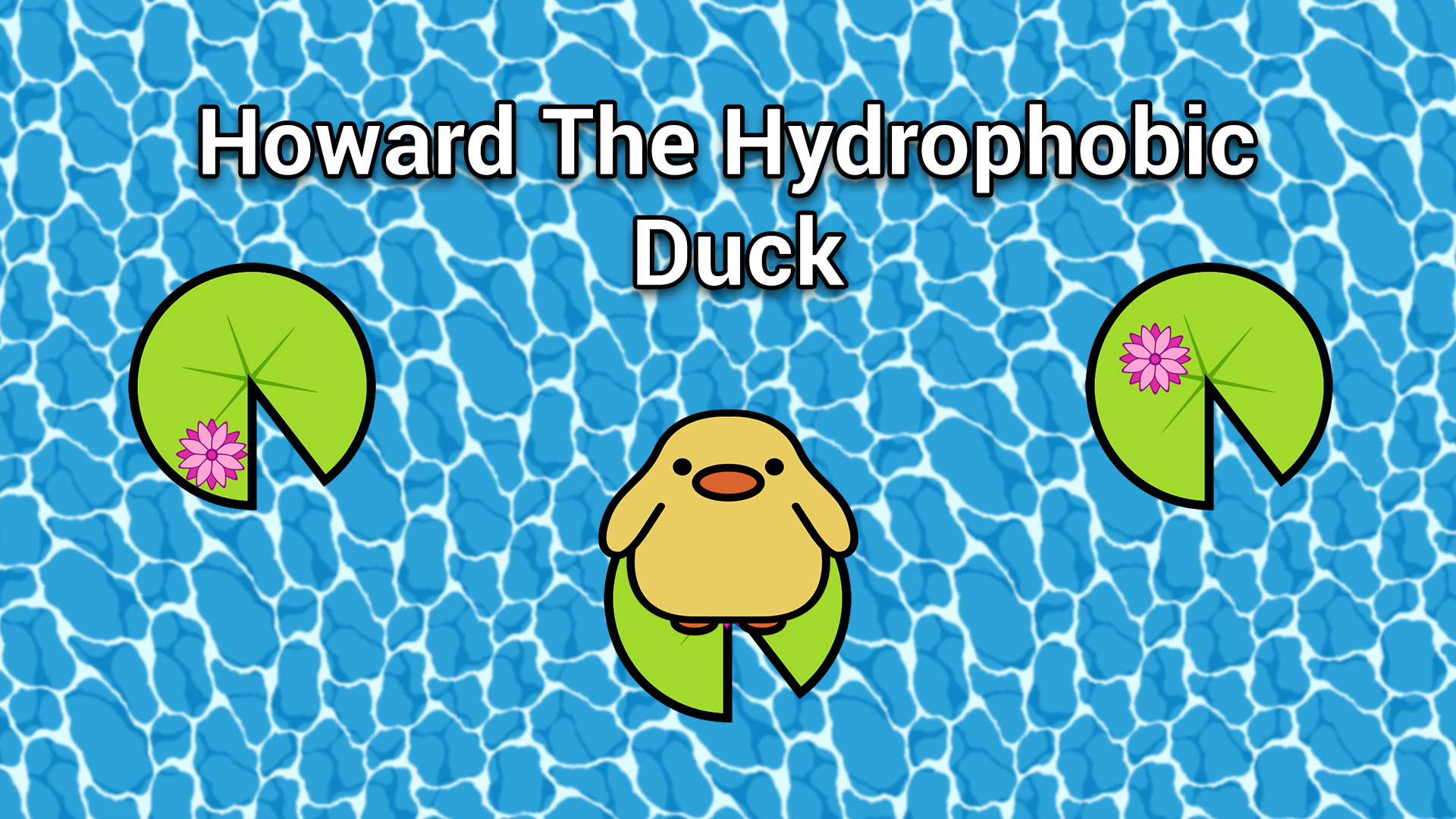
There I was, sat at the Norwich Games Festival, planning to showcase our recent game jam project "Bowlatro". I was given a laptop, and all I needed to do was pull the project from Github and package it.
Two and a half hours later and it finally finished packaging.
"That's it", I thought, "I'm learning Godot".
Godot was actually the second game engine I ever used (third if you include using Scratch in year 7). I learned it after Unity and really enjoyed it, although I never made a finished game with it. Then I started a games degree course at a university that focused on teaching Unreal Engine, and that was that. My days of Godot were over.
Sure I dabled here and there, but my proficiency in the light-weight engine came nowhere close to the level I was at in Unreal. I was set on specialising entirely in Unreal Engine, but the enormous size of both the engine itself and every project I made in it, the snails-pace loading times, and the hardware requirements needed to run most Unreal Engine games made me reconsider. I'd always joked that "in the time it takes to download Unreal Engine, you can download Godot, make a new project, create a game, and package it", but now I was starting to wonder how true that really was.
A thus an idea was formed. I would make my first finalised Godot game in as little time as possible, both as a way to learn the engine and to prove to the other members of Mini Pin that we should really consider it in our next game jam.
While a smart person might start learning a new engine (or relearning in my case) by watching tutorials or reading documentation, I decided to open the engine and just start doing stuff. And the "stuff" that I chose to start with? Shaders - something I'd barely even touched in Unreal Engine.
See, my game idea was quite simple. You would play as a duck named Howard who's scared of water, so you have to jump between lily pads to prevent him from falling into the river. I wanted the water to look nice, but I'm not good at art, so I decided to look for a pre-made water shader.
I visited godotshaders.com and found a shader called "Wind Waker 2d Water Shader Canvas_Item". I watched a tutorial on how to implement this in Godot, and it worked great.
Next, I wanted to make the water infinitely scroll upwards. I first considered writing a script which would constantly spawn MeshInstance2Ds with the shader applied and move them upwards. Luckily before I went through with that I realised I could achieve the same result within the shader itself.
At first I thought this would be quite difficult, but after some research I discovered it was surprising easy. This is what the last couple of lines of the shader originally looked like
    vec2 uv = globalposition / 32.0;
    COLOR.rgb = vec3(water(uv * tile + offset, vec3(0,1,0), TIME * distortion_speed));
and this is my updated version
    vec2 uv = globalposition / 32.0;
    uv.y += water_speed;
    COLOR.rgb = vec3(water(uv * tile + offset, vec3(0,1,0), TIME * distortion_speed));
This boosted my confidence in the engine a lot, I had solved my first problem with just one line of code.
The next thing I worked on was the lily pads. The idea was that they would spawn in one at a time at the bottom of the screen in a random X position and move upwards at the same speed as the water. Implementing this into the game was quite easy, and it taught me all about instantiating scenes.
The only problem was, my lily pads looked nothing like lily pads.
And this could only mean one thing. Every game developer's nightmare... Art.
I decided to use vector art for this project, as it lends itself to a simplistic style, which is all I can achieve with my level of art skills. I used the software Inkscape as it's free and open source. There was a bit of a learning curve, especially since I'm familiar with software like Photoshop. After watching a few tutorials, however, I had managed to make a simple lily pad.

After that I started to work on the character. I implemented code to make the character automatically look at the next lily pad, and I added controls to let the player jump. I made the game stop if the player doesn't land on a lily pad, wrote some code to speed up the game every 2 jumps until it hit round 40, and then the main game loop was complete.
I started testing the game, purposefuly trying to break it as an attempt to discover any bugs, and I found a pretty big one. After the game had sped up a fair amount, I found that I kept losing even though it looked like my character had landed on a lily pad. I did some debugging to try and find the cause of the problem, and found the issue. I was moving the character using a tween, which is like an animation created in code, as it made the movement smooth, but I was detecting whether the player landed on a lily pad in the physics process, which runs 60 times per second. I believe that this caused a mix match in the timing, which caused me to keep losing even though it looked like I hadn't.
In order to fix this problem, I probably would have had to change how a lot of my code worked, as I needed the movement and collision detection to be happening in the same process, but I wanted to make this game in a day and I'd already spent a lot of time on it. This led to me implementing a work around that I'm not overly proud of. If the game thinks the player didn't land on a lily pad, instead of immediately losing, it continues to check for the next 5 frames. If the player still isn't on a lily pad then they lose, but if it detects one within those 5 frames then the game carries on as normal. It isn't a good fix, but it works.
At this point the game was pretty much completed. I added a simple main menu and I could have called it done there, but there was one problem. I couldn't think of any reason that anyone would actually want to play the game. And if someone did decide to play it, there was nothing to keep them there after they lost. That was when I decided to add the text book player retention method - global high scores.
The thought of making a duck jump across lily pads hundreds of times in a row isn't very enticing, but being able to set your name to whatever you want and then have it display on the main menu of everyone's game because you beat the global high score? Now that's fun.
I did some research, and came across a service called SilentWolf. It is a simple, free service that allows you to add features like leaderboards to your Godot game. I came across some concerns online about the security of SilentWolf and people accessing your API key for the service, but this game is so small and simple that I wasn't very concerned with that.
Implementing SilentWolf into my project was easy, and it allowed me to add a section on the main menu that shows the global high score and the name of the player who set it (I added an input box so players can set their names).
And then I was finally done! I packed the game, uploaded it to a website, tested it on my computer, and everything worked fine. Then I tried playing it on my phone and... it didn't work.
Well, one part didn't work - entering your name. It seems the line edit node in Godot doesn't work for mobile web games, or at least in my case it didn't. When I clicked on the box to input my name it didn't bring up a keyboard to let me type something. I did some digging online and found that other people had reported the same issue.
Luckily, Godot lets you write GDScript that can run Javascript in a web page, and I found this solution online
playerName = JavaScriptBridge.eval("prompt('%s');" % ["Please enter your name: "], true)
When this line runs it opens a prompt in the web browser with an input box, and whatever the user types gets assigned to the playerName variable. I then connected the function that runs this code to the focus_entered event on the line edit node, and now it works perfectly.
Looking back on the game, it's nothing special, but it wasn't meant to be. The purpose of the project was for me to learn Godot, and that I did. I also managed to make a finished game in a day, which I'm quite proud of.
An if you think you can beat the high score and get your name on the main menu, you can play the finished game here.
- Engine: Godot
- Additional Software: Inkscape
- Time: 24 hours